If you followed my last two articles, you know that a cookie banner without “Service Wrapping” is like a security guard who ignores the back door. You can have the most beautiful popup in the world, but if your Google Maps or Analytics scripts are “naked” in your HTML, they are leaking data the moment the page loads.
On my own websites, I use a “Zero-Leak” architecture. This means no third-party script executes unless it has been explicitly “authorized” by my consent manager. Here is the technical blueprint of how I achieve this using open-source tools like Tarteaucitron.js and Silktide.
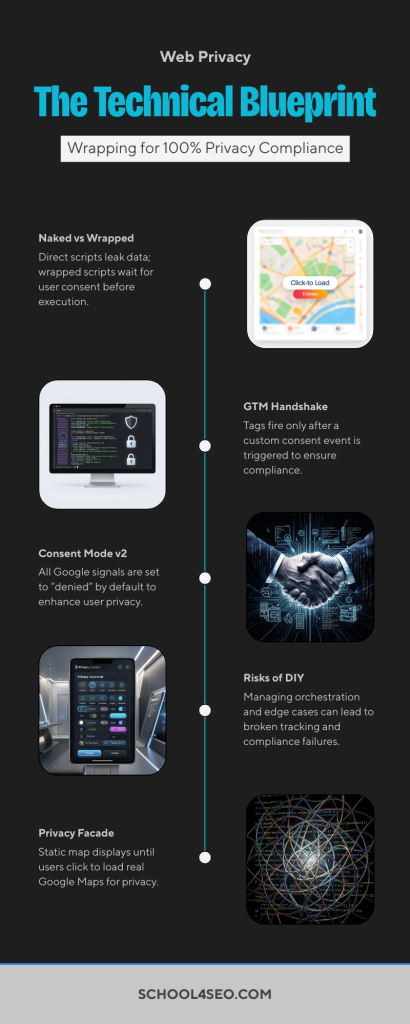
1. The “Naked” vs. “Wrapped” Script
Most webmasters paste tracking codes directly into their <head>. This is a mistake. To be compliant, you must “wrap” the script so the browser doesn’t recognize it as executable code until the consent manager gives the green light.
The Problem (Naked Script):
HTML
<script src="https://www.googletagmanager.com/gtag/js?id=GA_ID"></script>
The Solution (Wrapped for Tarteaucitron):
HTML
<script type="text/javascript">
    (tarteaucitron.job = tarteaucitron.job || []).push('gtag');
</script>
By using the .push() method, you are handing the “keys” of the script to the manager. It will only initiate the connection to Google’s servers after the user clicks “Accept.”
2. Implementing Google Consent Mode v2 (The Manual Way)
Since 2024, Google requires specific “signals” to be sent to keep your Ads and Analytics functional. On my sites, I initialize the dataLayer with a “Denied” status by default. This ensures that even if a script accidentally slips through, Google is instructed not to use the data for advertising.
My Default Header Configuration:
JavaScript
window.dataLayer = window.dataLayer || [];
function gtag(){dataLayer.push(arguments);}

// Set defaults to 'denied'
gtag('consent', 'default', {
  'ad_storage': 'denied',
  'ad_user_data': 'denied',
  'ad_personalization': 'denied',
  'analytics_storage': 'denied'
});
3. The “Privacy Facade” for Google Maps
This is my favorite expert trick. I never embed a live Google Map directly. It’s heavy, it slows down the site, and it tracks users aggressively. Instead, I use a Facade Pattern.
How the code looks:
Instead of an <iframe>, I use a <div> with a “Click to Load” overlay.
HTML
<div class="googlemapsembed"
     data-url="YOUR_MAP_URL"
     style="width:100%; height:450px; background: url('map-placeholder.jpg');">
     <button onclick="tarteaucitron.userInterface.openPanel();">
        Enable Google Maps to view location
     </button>
</div>
When the user clicks the button or accepts “Social Media” in the banner, Tarteaucitron swaps that div for the actual interactive map. This keeps my initial page load lightning-fast and my privacy score perfect.
4. The GTM “Handshake”
If you use Google Tag Manager (GTM), the open-source banner must talk to GTM. On my setup, I configure the banner to fire a Custom Event whenever consent is updated.
- Event Name:
stcm_consent_update(for Silktide) ortac_analytics_allowed. - The Result: My GTM tags (like Meta Pixel or Hotjar) are set to only fire when this specific event is detected. This prevents “tag firing race conditions” where a tag might try to load before the banner has finished loading.
Why DIY is Risky for High-Traffic Sites
While I’ve shared the code above, the real challenge is orchestration.
- What happens if the user changes their mind?
- Does your site reload to “kill” the active scripts?
- Are you passing the
url_passthroughparameter to keep your conversion data accurate?
On my own sites, I’ve spent dozens of hours refining these triggers so they don’t break the user experience. If you are running a high-traffic business, you shouldn’t be “testing” your code on live visitors.
Get a Professional “Zero-Leak” Setup
Don’t risk your SEO or your legal standing with a “close enough” installation. I offer a Technical Integration Service where I will:
- Clean your source code of all “Naked Scripts.”
- Build custom Privacy Facades for your Maps and Videos.
- Configure a bulletproof GTM Consent Handshake.
- Verify everything with a Network Traffic Audit.